 EditTextPhoto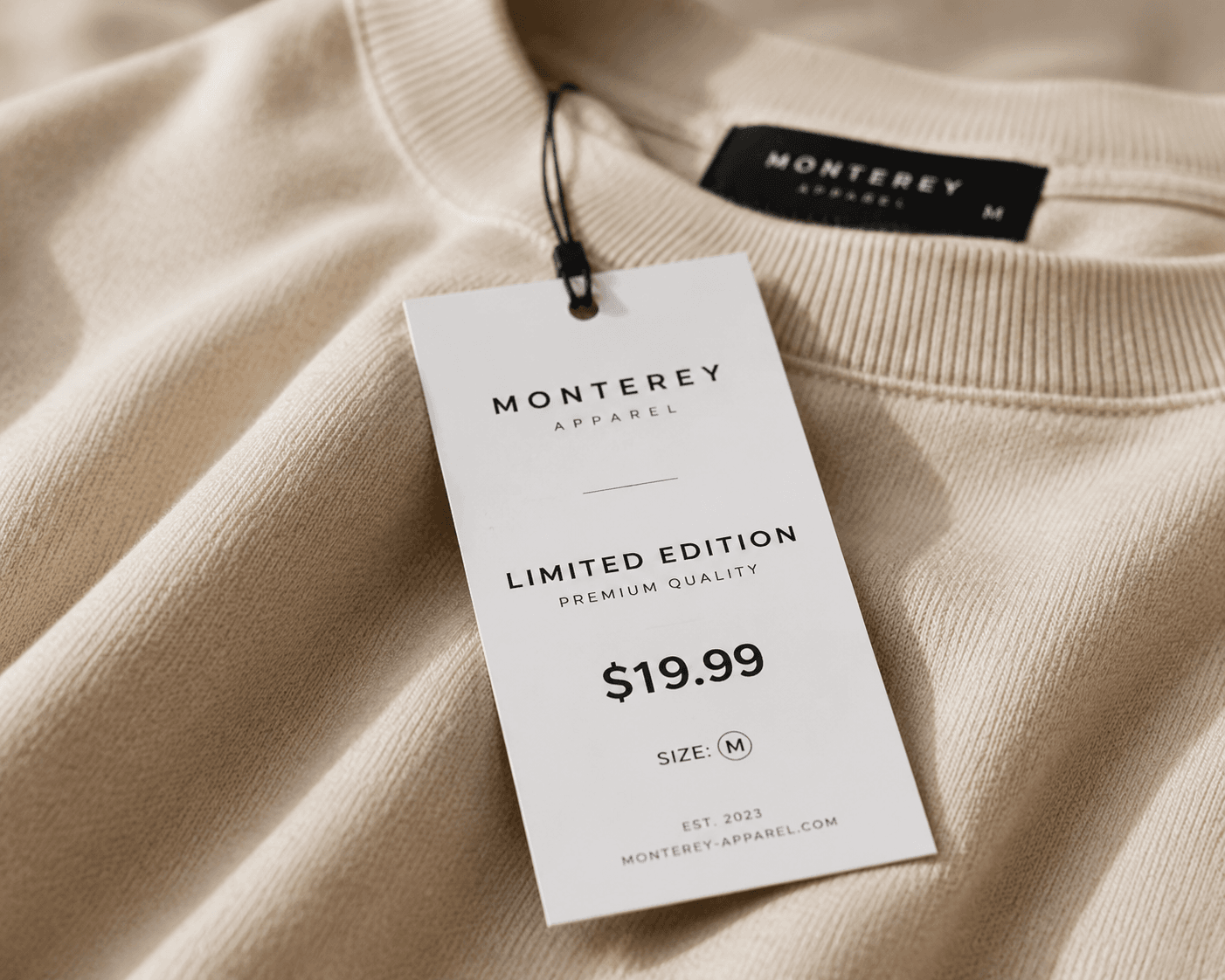
 OriginalAI Result
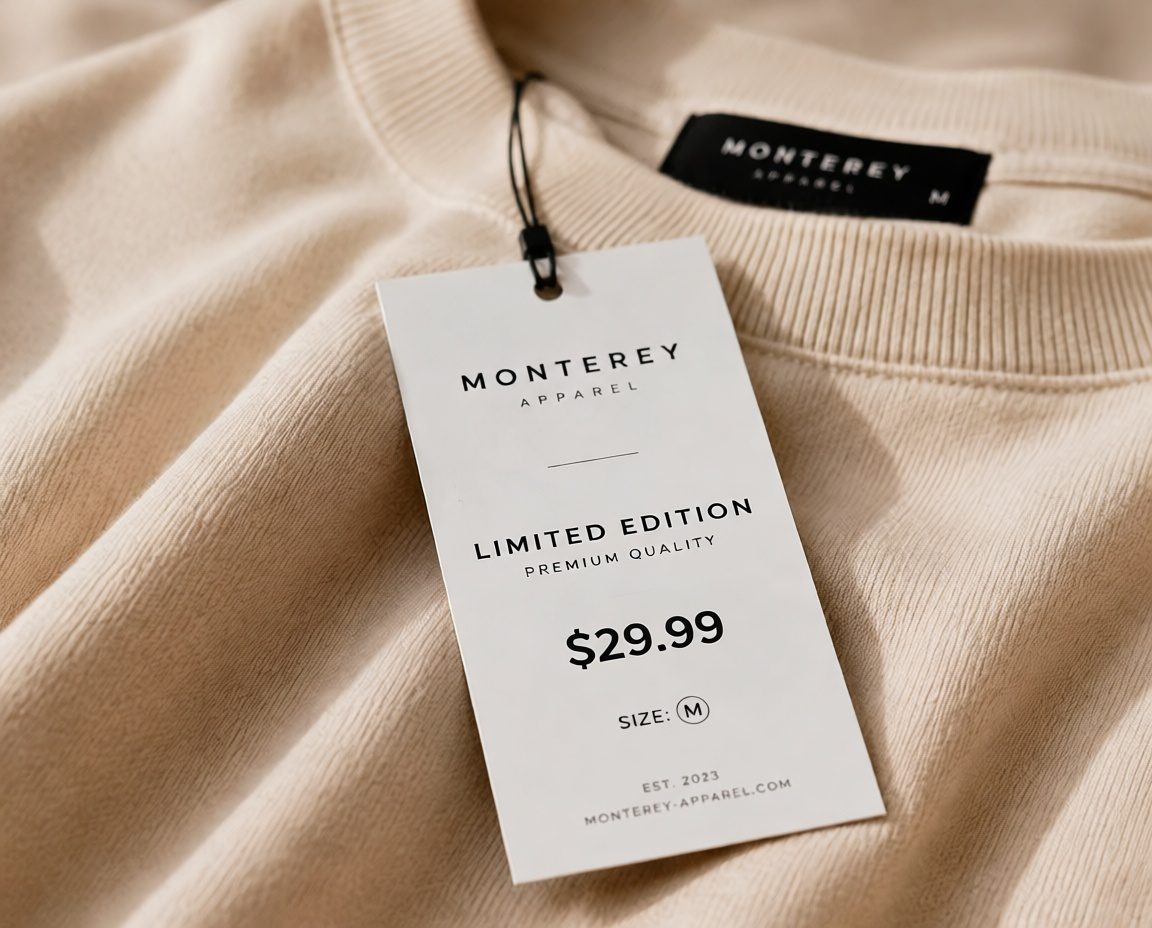
Match a product price style
The replacement follows visible size, weight, color and spacing instead of using a generic overlay.
Compare the price before and after while the label and product photography remain in place.Replace words already baked into a JPG, PNG or WebP while AI aims to recreate a close visual match for the lettering and surrounding design. You do not need to identify, download or install the original font family.
Upload an image to start editing its text
By clicking Generate, you confirm you own or are licensed to edit this image and that the edit is not intended to deceive a third party—including visa or immigration submissions, fake refund or transaction proofs, and email or chat screenshots altered to falsify sender, content, or timestamp.
We do not process IDs, passports, visa support letters, official seals, bank statements, or tampered receipts. Violations result in account termination without refund; request logs are preserved and may be shared with law enforcement, including authorities in the intended victim's jurisdiction. See Acceptable Use.
Upload an image and submit your changes to see the result.
The divider moves automatically. Hover to pause or drag it to inspect the original and edited image.
OriginalAI ResultThe replacement follows visible size, weight, color and spacing instead of using a generic overlay.
Compare the price before and after while the label and product photography remain in place.
 OriginalAI Result
The artwork stays intact while new wording is integrated into the existing treatment.
Inspect how campaign wording changes within the original artwork and hierarchy.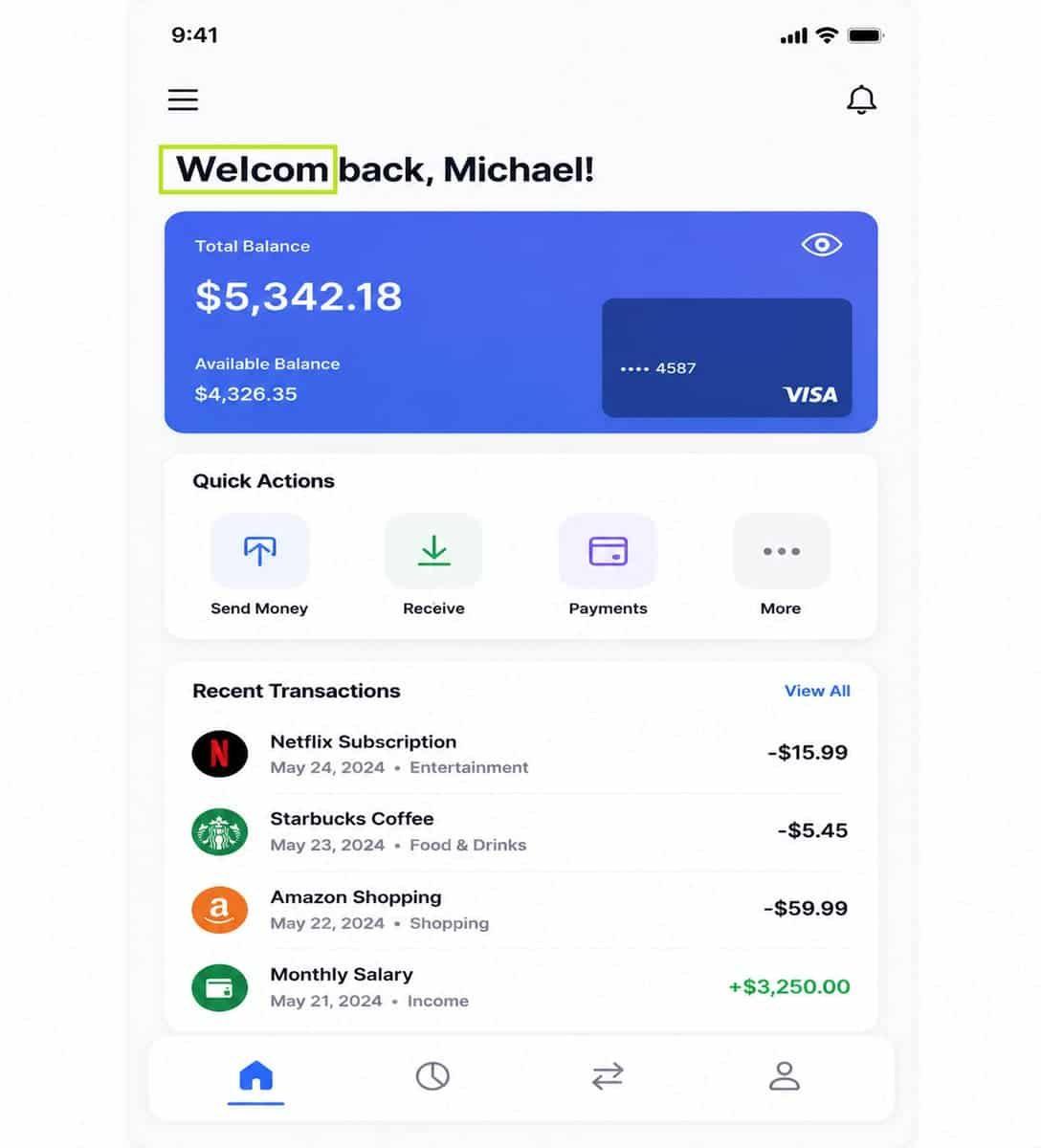
 OriginalAI Result
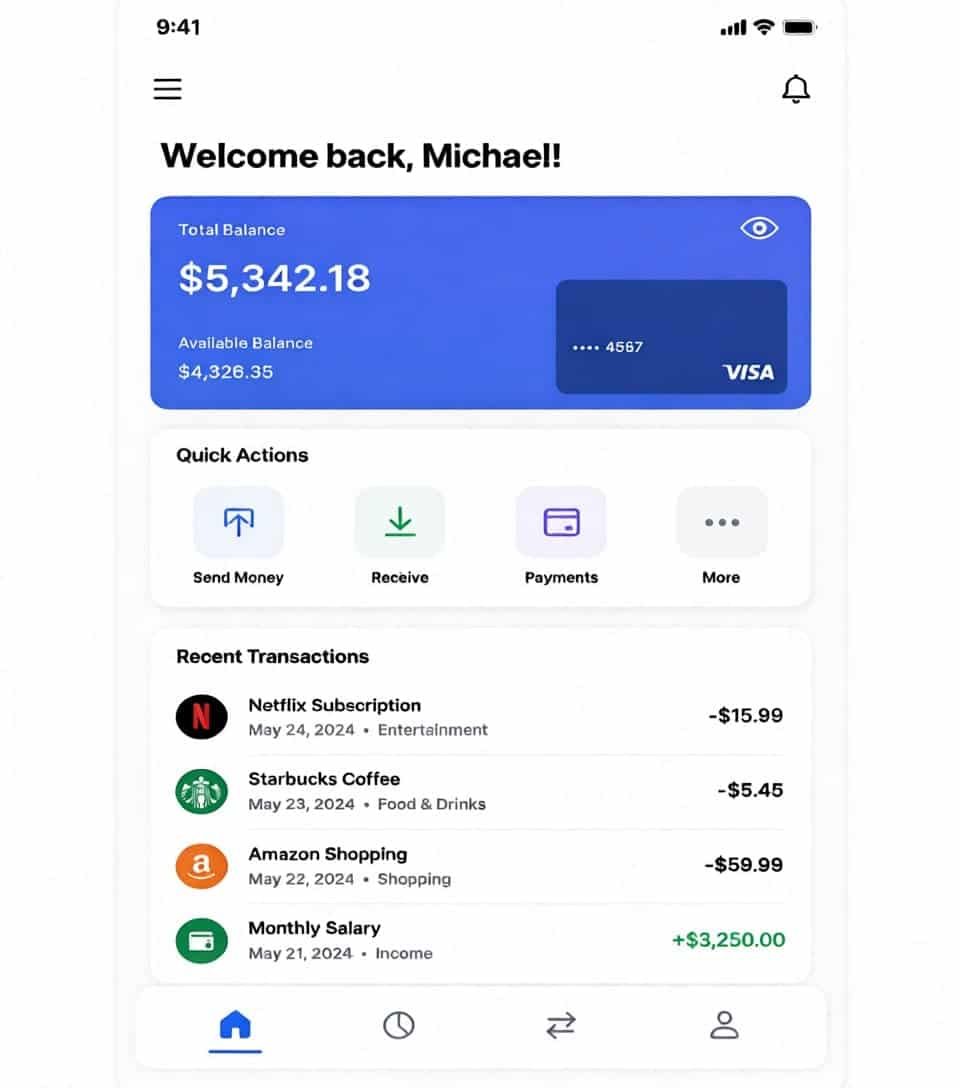
Update a UI label without the Figma, Sketch or Photoshop source.
Small interface text shows the importance of spacing, color and surrounding pixels.Choose a clear JPG, PNG or WebP that you own or have permission to edit.
Enter the visible wording exactly so AI can identify the intended area and its typography.
Use concise new wording that fits the available space and keeps a similar visual footprint.
AI analyzes letter appearance, size, weight, color, spacing, shadow, outline, perspective and nearby texture.
Review letter shapes and reconstructed background at full size before downloading the 2K result.
Focused changes aim to follow the identity of an existing design while updating only the wording that is no longer correct.
Change an authorized product graphic while retaining its label style and photography.
Reuse owned promotional artwork while following its existing headline treatment.
Update a product label without rebuilding the interface or locating its font.
An overlay places a new text box above the image and can leave old letters or a visible patch underneath. This workflow targets existing pixels, reconstructs the background, and renders replacement lettering that follows the style already visible in the image.
It replaces text already flattened into an image and aims to recreate a close visual match by analyzing visible typography rather than claiming to identify or provide the exact licensed font file.
Sellers, marketers, product teams and creators use it to update prices, headlines, versions and labels when the source design or font name is unavailable.
It combines removal, background reconstruction and styled replacement, producing an updated image rather than an editable font or layered file.
A basic overlay adds independent lettering. Same-font replacement works in the original area and follows appearance, size, weight, color, spacing, shadow, outline, perspective and background texture.
Upload the clearest original, copy one text area exactly and choose a concise replacement. Review the result at 100% zoom.
Edit image text with the same fontA manual workflow often means identifying the font from the image, finding and licensing it, installing it, matching size and spacing, removing the old text and then rebuilding the replacement.
EditTextPhoto instead uses the visible image, the selected existing words and your replacement to match the visual style without requiring the font-family name.
Working specifically with a flattened JPEG? See how to edit text in a JPG image.
AI evaluates visible appearance, size, weight, color, spacing, shadows and outlines.
The result is a visual match; it does not identify or return a licensed font file.
Text on packaging, signs or angled surfaces may need perspective-aware rendering.
The old letters must be removed and the texture behind them reconstructed.
Tiny, blurry, handwritten, decorated or partly hidden letters provide less information.
A much longer replacement can require different spacing, size or line breaks.
Edit only images and brand assets you own or are authorized to modify. Do not alter identity, financial, legal or official records or create deceptive evidence.
Upload a clear authorized image and start with one concise old-to-new replacement.
Upload my image