 EditTextPhoto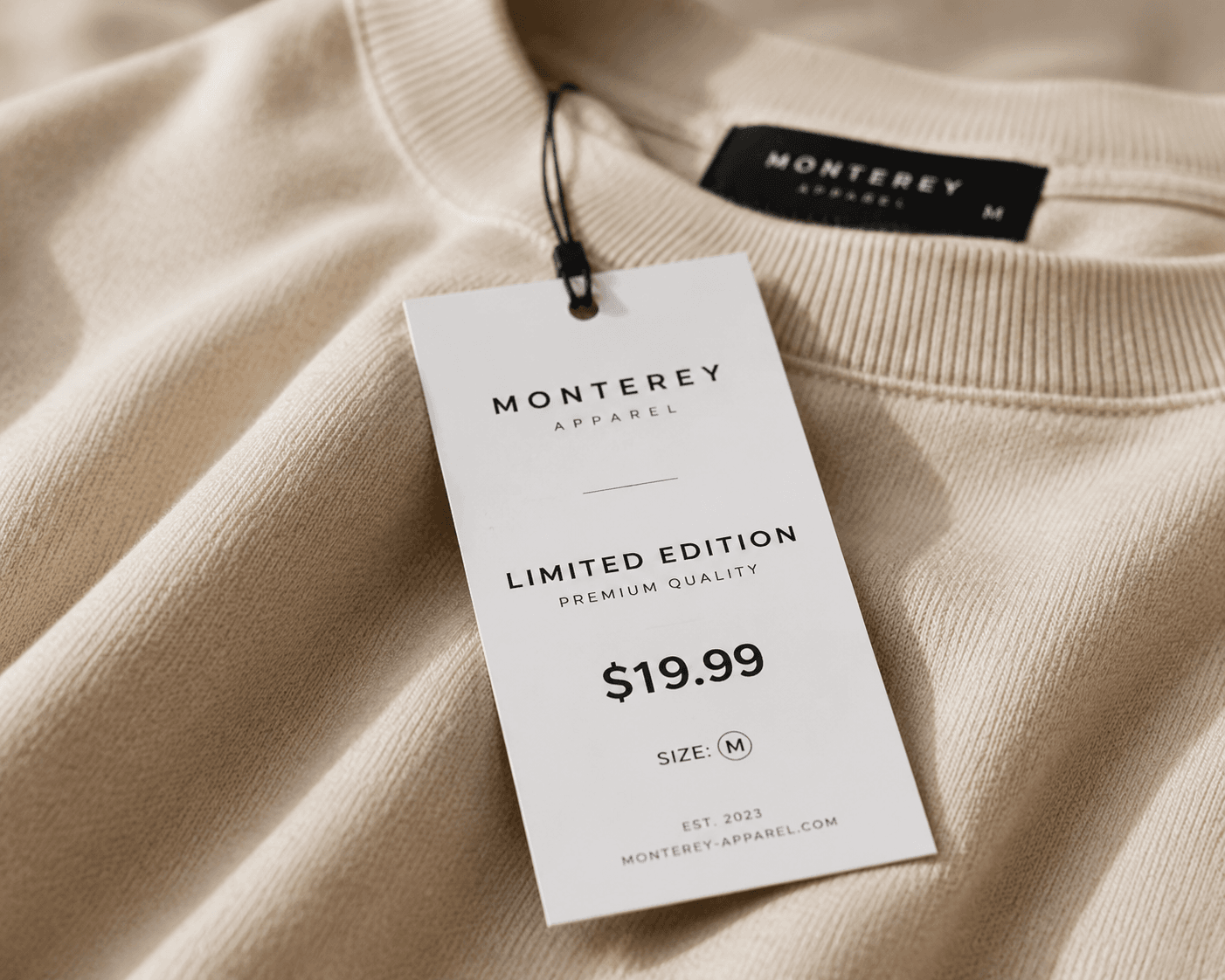
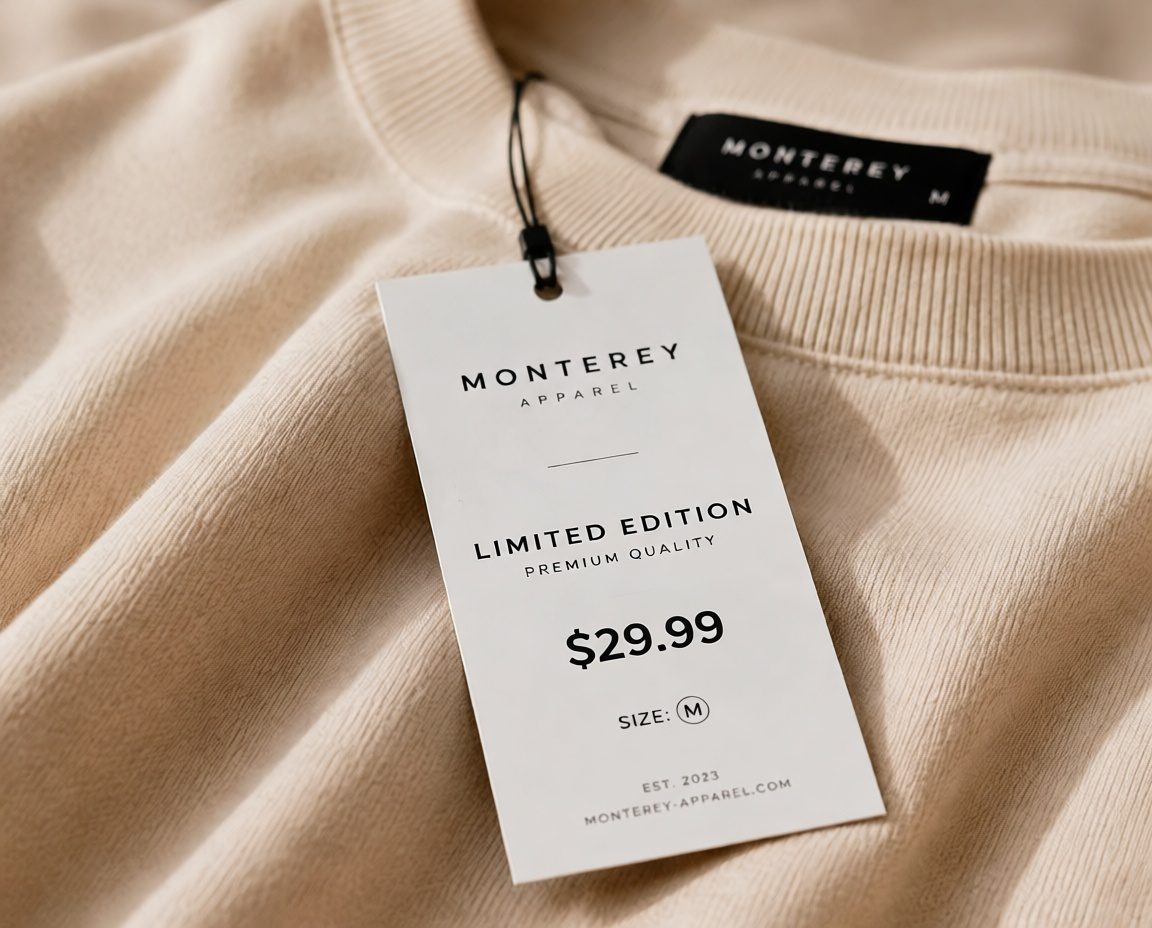 OriginalAI Result
Edit a product-image price
Existing text is replaced while the product photography and label design remain in place.
The old price is part of the JPG pixels rather than an editable text object.Edit existing text inside a JPG or JPEG image—not just a new text overlay. Upload a flattened image, identify the words already baked into its pixels, and enter the replacement you want without a PSD, Figma file or original design project.
Upload an image to start editing its text
By clicking Generate, you confirm you own or are licensed to edit this image and that the edit is not intended to deceive a third party—including visa or immigration submissions, fake refund or transaction proofs, and email or chat screenshots altered to falsify sender, content, or timestamp.
We do not process IDs, passports, visa support letters, official seals, bank statements, or tampered receipts. Violations result in account termination without refund; request logs are preserved and may be shared with law enforcement, including authorities in the intended victim's jurisdiction. See Acceptable Use.
Upload an image and submit your changes to see the result.
The divider moves automatically. Hover to pause or drag it to inspect the original and edited image.
OriginalAI ResultExisting text is replaced while the product photography and label design remain in place.
The old price is part of the JPG pixels rather than an editable text object.
 OriginalAI Result
The workflow removes baked-in wording, repairs the background and renders the replacement.
An exported marketing JPEG can be revised even when its Canva, Figma or PSD source is unavailable.
 OriginalAI Result
A focused text correction keeps the surrounding screenshot unchanged.
The captured interface is flattened, so its visible labels are no longer live UI text.Choose a clear image you own or have permission to edit. The existing words should be readable.
Copy the visible wording exactly, including capitalization and punctuation, so the intended area can be located.
Provide the new words. A similar length and line structure usually fits the original space more naturally.
AI removes the old letter pixels and rebuilds the texture, color or image detail that should appear behind them.
AI follows the font appearance, size, color, spacing, shadow and perspective visible in the JPEG.
Inspect lettering and repaired edges at full size, then download the updated image.
A JPG text editor is useful when the finished raster image is available but its editable source file is not.
Update an authorized product label or promotional price without reshooting the item.
Replace an outdated campaign phrase in an exported JPEG while keeping the surrounding artwork.
Revise a visible event detail in a poster you own or manage when the original design project is unavailable.
Correct a label in an authorized product screenshot used for marketing or documentation.
Fix short, clearly readable AI-generated lettering while preserving the rest of the image.
Replace a concise label in a personal or commercial image you are authorized to change.
JPG and JPEG are flattened raster formats. Their text is normally baked into pixels, with no editable text layer to select. Editing it requires removing the original letters, repairing the hidden background, recreating the wording and fitting the new result into the same space.
It is an AI workflow for editing existing text inside JPG and JPEG images. It targets lettering already merged into the image pixels instead of placing an unrelated text box over the picture.
Sellers, marketers, designers, product teams and creators use it when they have an exported product image, poster, advertisement or screenshot but no longer have its layered source project.
You upload a JPG or JPEG, enter the current visible words and provide the replacement. The workflow removes old letter pixels, reconstructs their background and renders updated text into the finished raster image.
Adding text creates a new overlay and leaves the original pixels intact. Editing existing JPG text replaces baked-in words. Manual editors offer more layer control, but usually require erasing, cloning, font selection and alignment by hand.
Upload the clearest original JPEG, copy one text area exactly and use a concise replacement. Keep an untouched copy and review the result at full size before publishing.
Upload JPG or JPEGA flattened JPEG does not contain the original editable text layer, but the visible pixels can still be processed.
Use this workflow when the finished JPG is your only source. If you still have a layered design file, editing that original remains the most precise option.
AI evaluates font appearance, size, color, spacing, shadow, outline and perspective rather than asking you to identify a font name.
For more detail about visual matching and its limitations, use the same-font image text editor.
Covering words with a rectangle can leave a visible patch. Existing-text editing instead attempts to reconstruct the color, texture and nearby image detail.
Simple, sharp backgrounds are more predictable than tiny text over faces, intricate patterns or heavy blur.
Adding text places a new caption or overlay on top of the image. It is appropriate when no old wording needs to be removed.
Editing existing text changes words already baked into the JPEG and must rebuild the pixels underneath them.
Edit only JPG or JPEG images you own or are authorized to modify. Do not alter identity documents, financial records, certificates, legal evidence or other official materials to mislead people.
Upload an authorized image, copy the current wording exactly and enter the replacement you need.
Upload JPG or JPEG